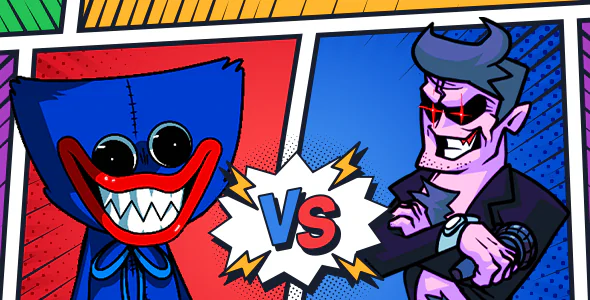
Step into the ultimate showdown in Rhythm Battle Showdown! 🎸⚔️ Choose your hero, battle across fantastic arenas, and outsmart your foes in intense PvP duels! 🎯 Dodge deadly traps, upgrade your fighters, and dominate the battlegrounds—solo or with friends! 🌍 Challenge players worldwide and prove you’re the true champion! 👑
🚀 Key Features:
✅ Easy Ad Integration (AdMob - Banner + Interstitial) 📢
✅ Simple Reskin – Customize & brand it your way! 🎨
✅ Addictive & Satisfying Gameplay – Smash enemies with style! 💥
✅ Multiplatform Support – Ready for Android & iOS! 📱
✅ Publish-Ready – Launch fast & hassle-free! 🚀
Rhythm Battle Showdown is a music battle game where players hit notes in time with the beat. Use only original or licensed music and original characters when you reskin it. This guide walks you through opening the Unity project, replacing the artwork and audio, tuning the gameplay, adding your own ad IDs and building a release for Google Play and the App Store.
Extract the download, open Unity Hub, choose Add project from disk and select the project folder. Open it with the recommended Unity version and wait for the first import to finish. Open the main or menu scene and press Play to confirm everything works before you change anything. Keep an untouched copy of the original download so you can always compare or start over.
Decide on a theme that suits this rhythm battle game and your target players. Write a list of every asset you will replace and note the size of each original image, so your new art fits without adjusting colliders or layouts. A consistent art style across characters, backgrounds and UI makes the finished game look professional.
For a rhythm battle game, focus on these assets:
Keep the same image dimensions and pivot points where possible. In Unity, check each texture's import settings (sprite mode, pixels per unit, compression) and use Sprite Atlases to keep the build light.
Swap the background music and sound effects with audio you created or licensed for commercial use. Keep files compressed and short, and test volume levels on a real phone.
Small gameplay changes make your release feel original and help it pass store review. Consider adjusting:
Play the first few levels yourself and make them easy, then increase the challenge gradually.
Find the ads manager script or settings object and replace the ad IDs with your own AdMob (or other network) App ID and ad unit IDs. If the project uses the Google Mobile Ads plugin, enter your App IDs in Assets > Google Mobile Ads > Settings. Test with test ads before switching to live IDs. If in-app purchases are included, create matching product IDs in Google Play Console and App Store Connect. Never click your own live ads.
In File > Build Settings, switch to Android or iOS. In Player Settings, set your company name, product name, a unique package name, version, icons and splash settings, and the target API level Google Play currently requires. For Android, create and back up a keystore and build an Android App Bundle (AAB). For iOS, build to Xcode, sign with your team and archive. Test the release build on at least one older and one newer device before uploading.
Use only music you own or have licensed, and show the note lanes clearly in screenshots so players understand the gameplay instantly. Give the game a new, original name, icon and screenshots. Our free tools can help: the Game Name Generator, the Game Description Generator, the ASO Keyword Checker and the Privacy Policy Generator for the policy link both stores require.
For more detail, read our guides on reskinning a game and publishing on Google Play. Need help with this item? Contact our support team through the Contact page.
This item is available for free download. You may download and use it according to the free item policy.
DownloadLast Update:
Jun 23, 2025 20:47 PM
Published:
Jun 23, 2025 20:42 PM
Version:
v1.0
Category:
High Resolution:
YesTags: